
How to use VPN with UgCS applications
This guide is aimed at UgCS users wanting to connect a drone to UgCS while having the computer (running UgCS Desktop) and the drone’s RC on different networks.
Using this method, both devices will be able to connect from anywhere in the world as long as they have an active internet connection.
For this example, we are using the ZeroTier VPN provider, but any similar provider may be used.
Step 1 - Install ZeroTier on both devices and activate in the ZeroTier management console
- Visit https://www.zerotier.com/ and follow the instructions to get started and create a management console and a network.
- Download and install ZeroTier on your computer and the drone’s RC.
Downloads for Windows and Mac are available here: https://www.zerotier.com/download/
For Android (DJI RC), download an apk file from here:
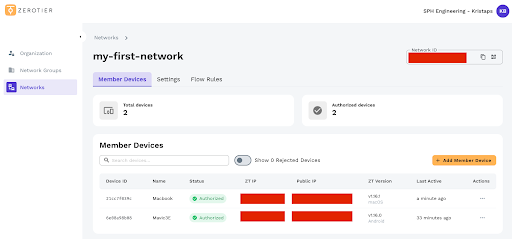
https://download.zerotier.com/RELEASES/1.16.0/dist/ - Connect and authorise both devices in the management console. After it is done, both devices should be shown as Authorised. (see screenshot below).
- Take note of ZT IP addresses for both devices; these will be needed in the next step.
Step 2 - UgCS Configuration
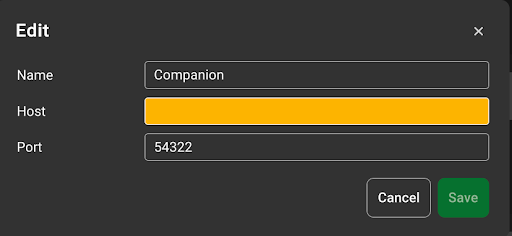
Open UgCS Desktop and go to Main Menu / Configuration / VSM and select Create new.
In the window that opens up, enter the following:
Name (for example, “Companion” or any other, this is not important).
Host = ZT IP address of your DJI controller (NOT the ZT IP of your PC!).
Port = 54322.
Select Save.
Step 3 - First connection
- Ensure both devices (PC and RC) are turned on and have an active internet connection.
- Ensure ZeroTier is up and running on both.
- Turn on the drone.
- Launch/restart UgCS on your PC.
- Launch the Companion app on your RC controller.
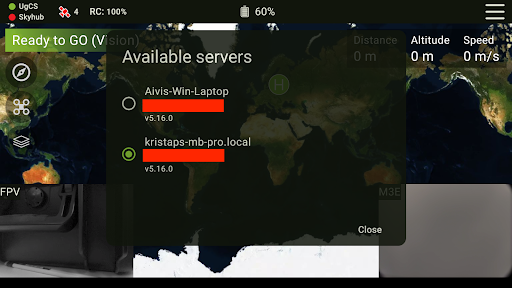
In the Companion app, tap on the top left corner where it says “UgCS / SkyHub”. A list of servers will be displayed. You should see a server with the IP address identical to the ZT IP address of your computer - select it.
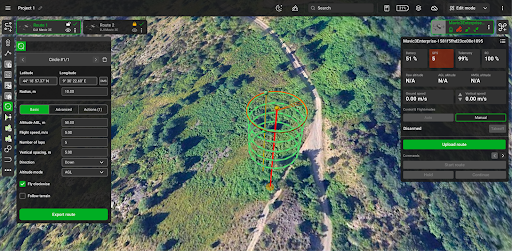
The drone should now be connected and displayed in UgCS.
Troubleshooting steps (in case the connection does not work)
- Do both devices have an active internet connection?
- Some large networks (e.g. company networks) might block device discovery. Try different networks, for example - mobile hotspot.
- Are both devices authorised in ZeroTier?
- Can you ping the ZT IP address of the controller from the terminal/command prompt? (command “ping XXX.XXX.XXX.XXX”)
- Ensure ZeroTier is running and the network is active on both devices. Specifically, check ZeroTier on Android; it can sometimes disable the network. Ensure that it is enabled.
- Ensure that the “last active” time in the ZeroTier console shows as “few seconds ago” or “a minute ago”
- Ensure that the in UgCS VSM configuration the configuration is correct as per the instructions above
- Ensure the correct server is visible and selected in the Companion app
Updated 8 months ago