
Creating a Large Project
-
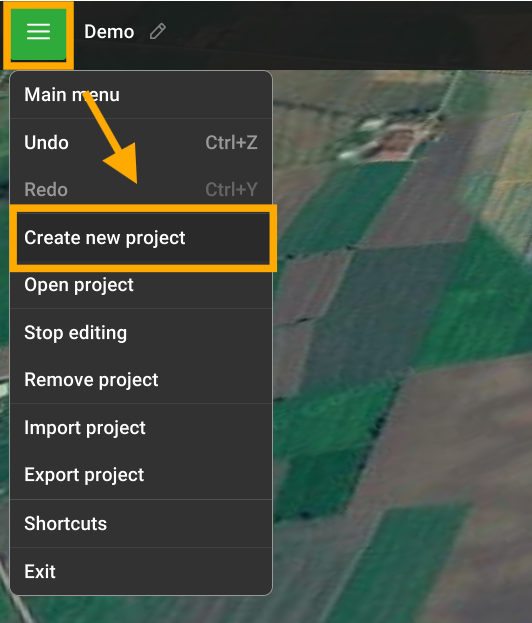
To create a Large Project, navigate to the Main menu and select 'Create New Project'.
-
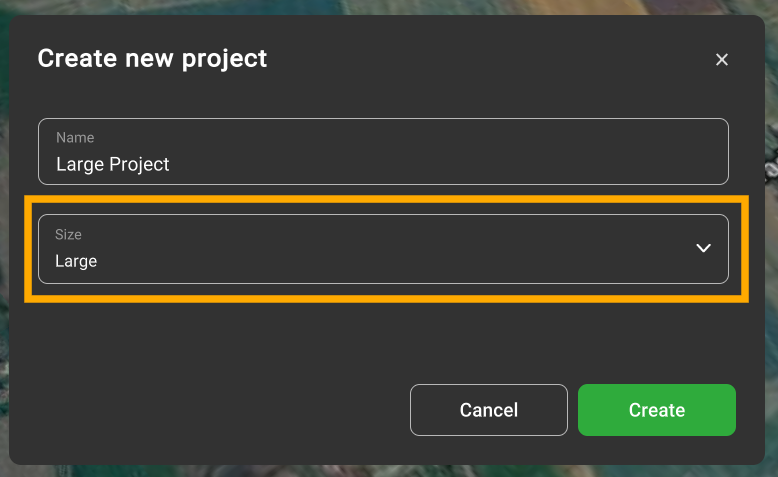
Specify the project name and select the "Large" size in the pop-up window.
-
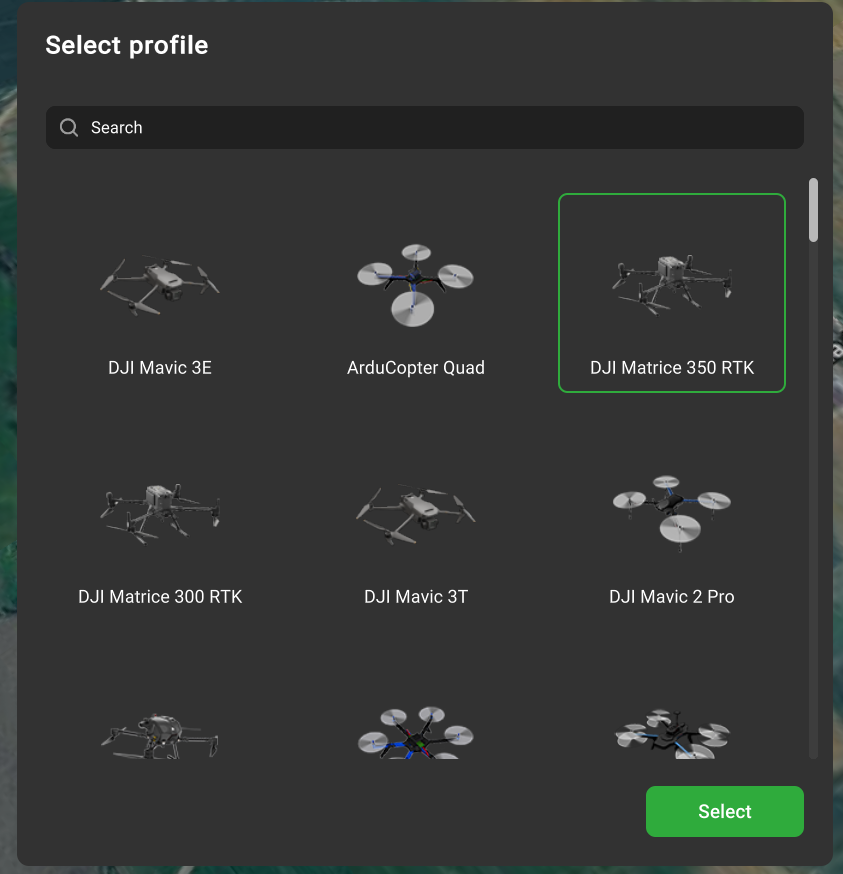
Select your vehicle.
-
Draw the area boundary by hand or upload the KMZ/KML file.
-
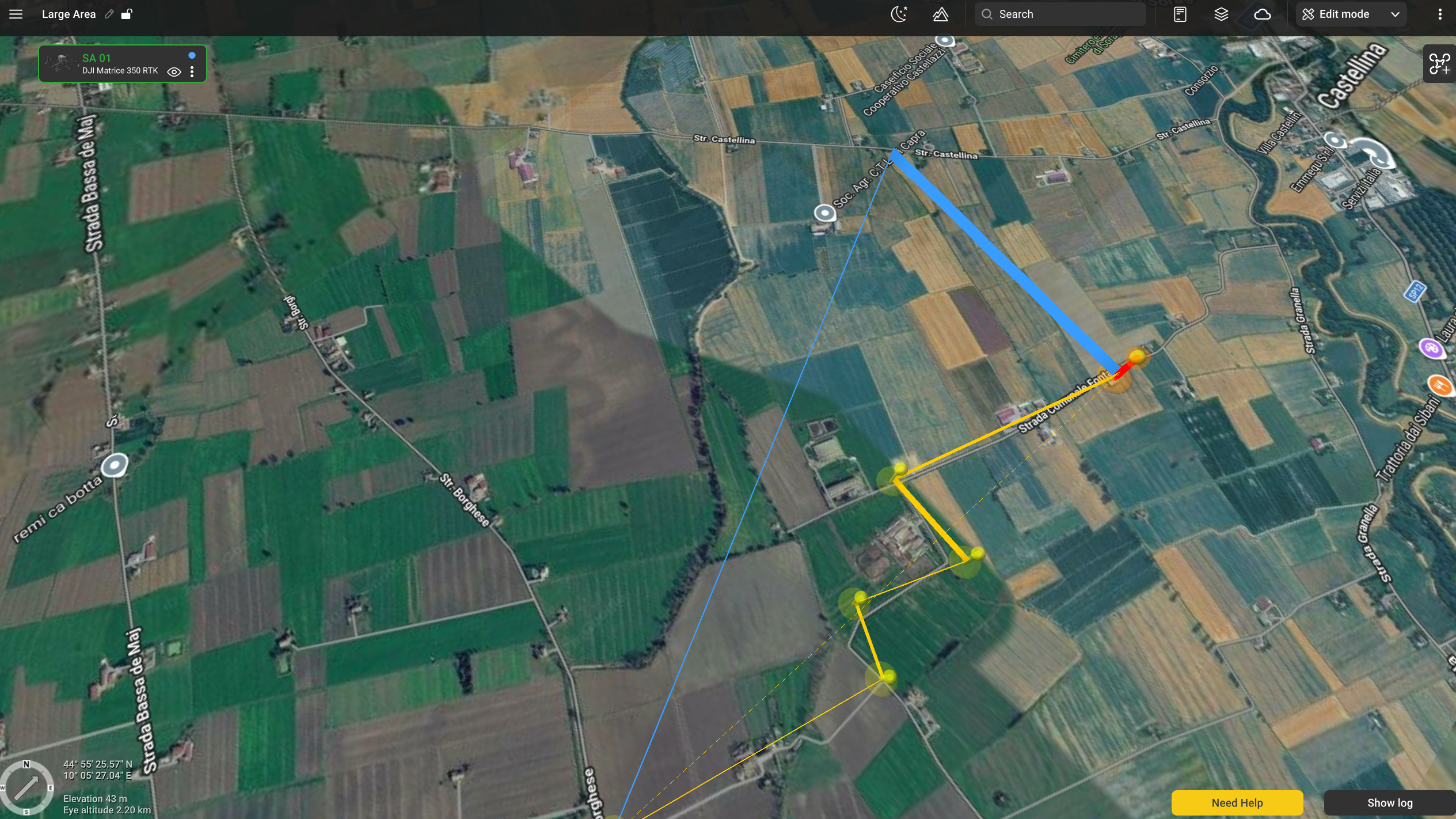
Place a take-off point
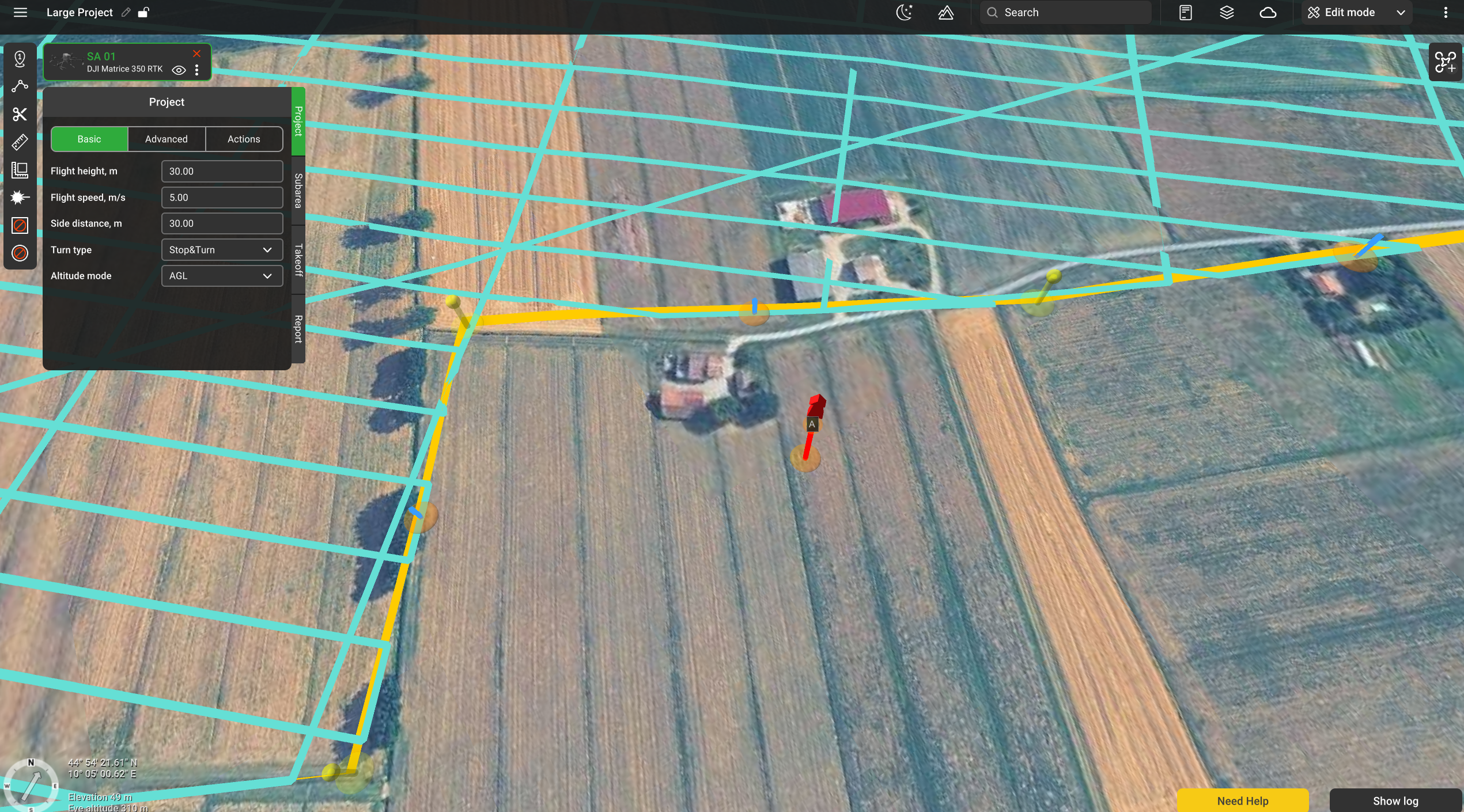
After that, the project draft will be calculated. Depending on the overall size and other settings, the project may appear as a single calculated route or as a grid with an error warning stating that the subarea exceeds the maximum number of waypoints (1000).
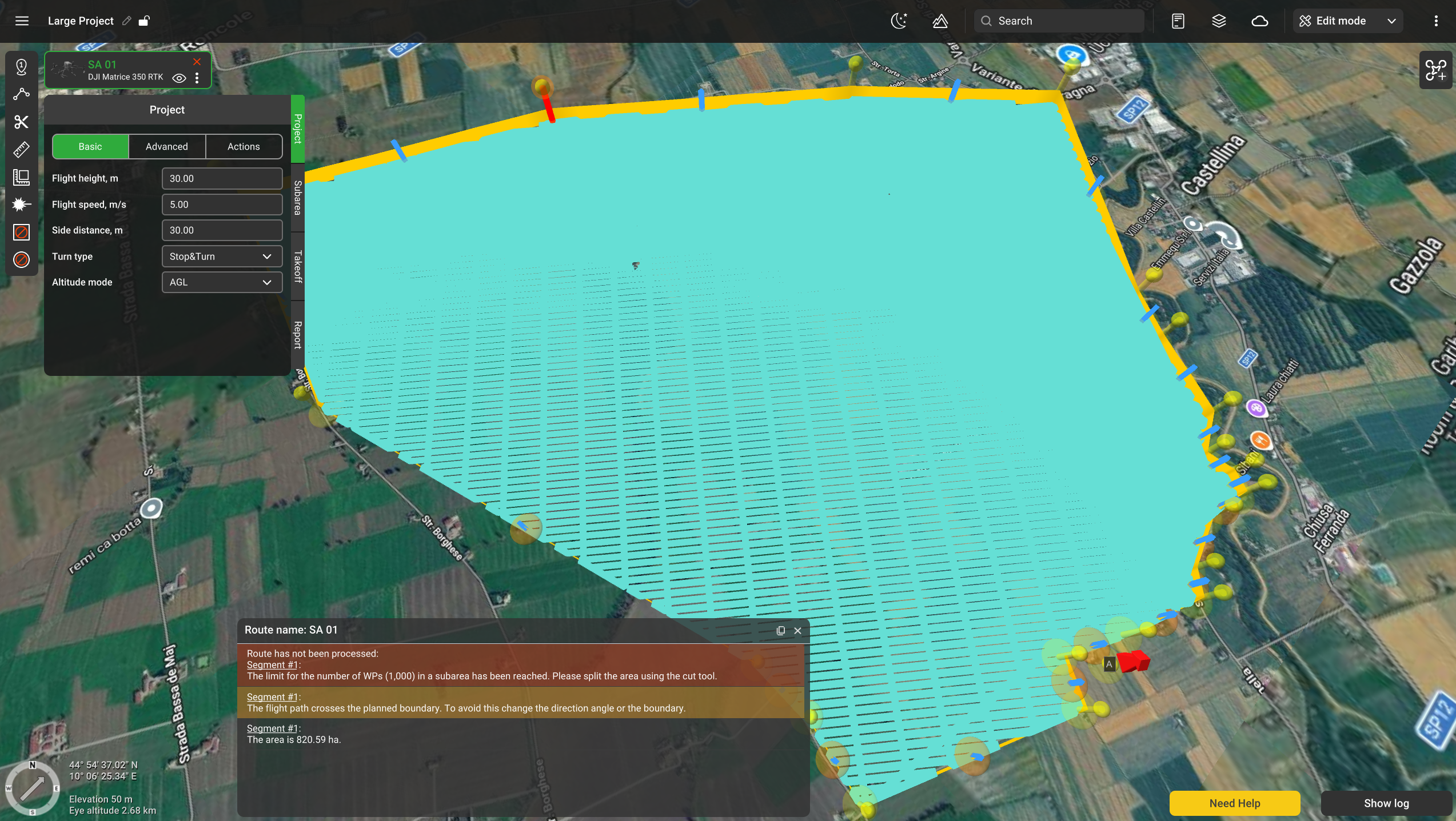
From now on, individual routes in this project will be referred to as subareas.
When a Large project is created, the window with parameters is divided into four tabs: Project, Subarea, Takeoff and Report:
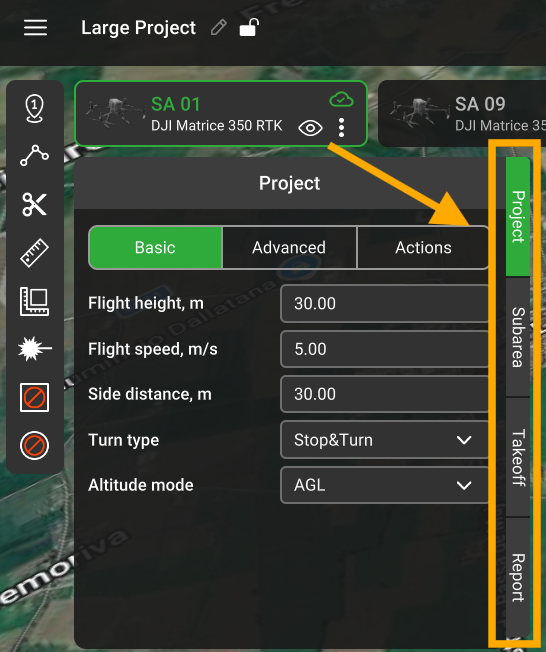
In the next chapter will cover the common Project parameters.
Updated 4 months ago